

Getting started – Customizing your landing page
After creating your campaign (in example Summer Sale 2026) and adding your first landing page, it’s time to move on to the most important part of Super-Site: personalized content variations.
Variations allow you to customize content on your pages and measure how those changes impact visitor behavior and conversions.
Starting the variation editor
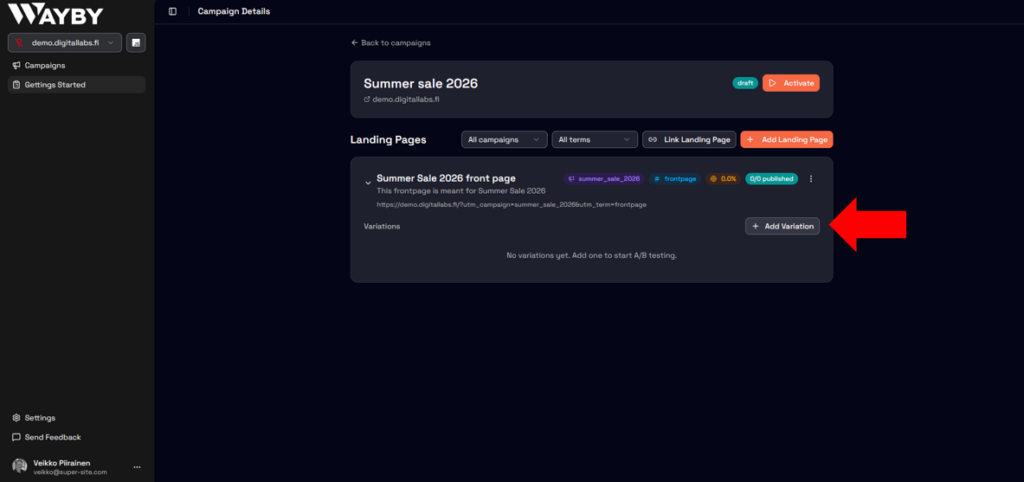
Everything begins by clicking Add Variation.
This action opens the editing view of your selected website page.
In this editor:
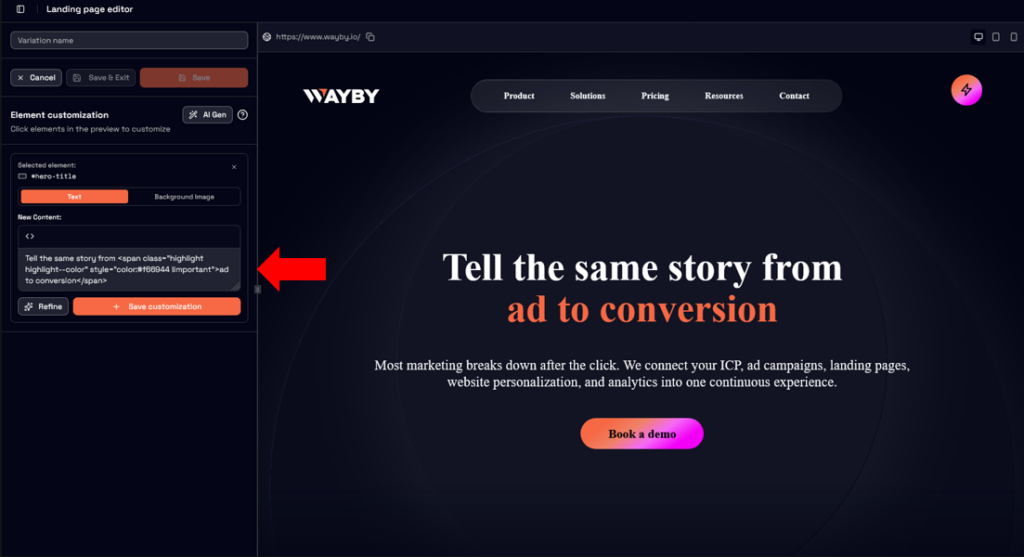
- You can hover your mouse over page elements
- Select exactly the content you want to change
- Instantly bring the selected element into the editing panel on the left side of the screen
Editing page content
Once an element is selected, you have two ways to make changes:
- Use AI to generate or refine content
- Manually edit the content yourself
This gives you full flexibility depending on how much control or automation you want.
Important: Add customization
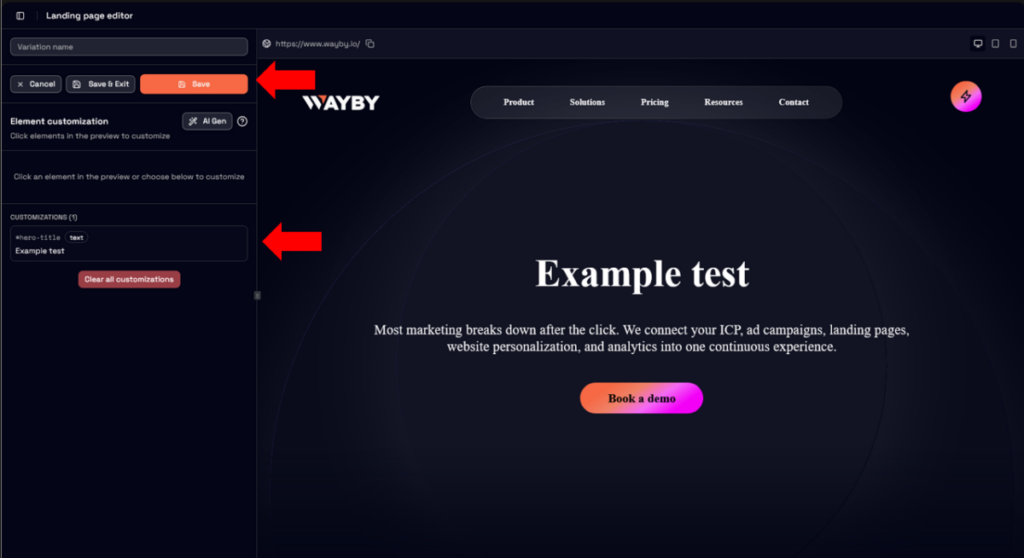
After making any change, you must click Add Customization.
This step is critical because:
- It saves the change
- The customization appears in the list on the left-hand side
- Without this step, the change will not be included in the variation
AI-assisted content creation
With Wayby you can also utilize AI-assisted content creation which makes generating text faster and easier.
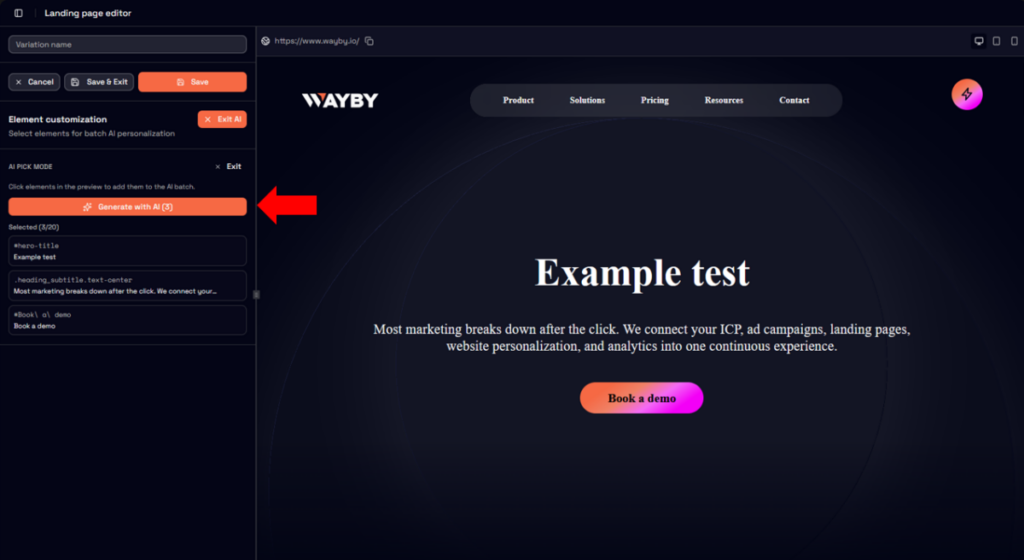
Everything starts by pressing AI Gen-button.
This gives you two ways to begin customizing text:
- Pick elements – You can handpick all elements you want to be customized using AI content generation
- Use existing customizations – You can simply click this to pick all the existing customized elements in the variation
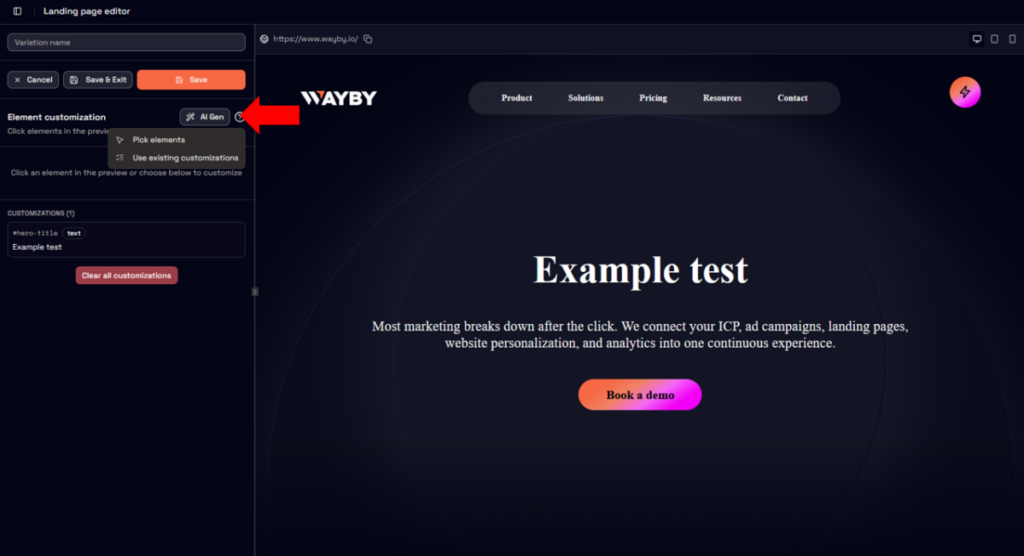
After elements are selected you can begin the generation part by pressing Generate with AI-button.
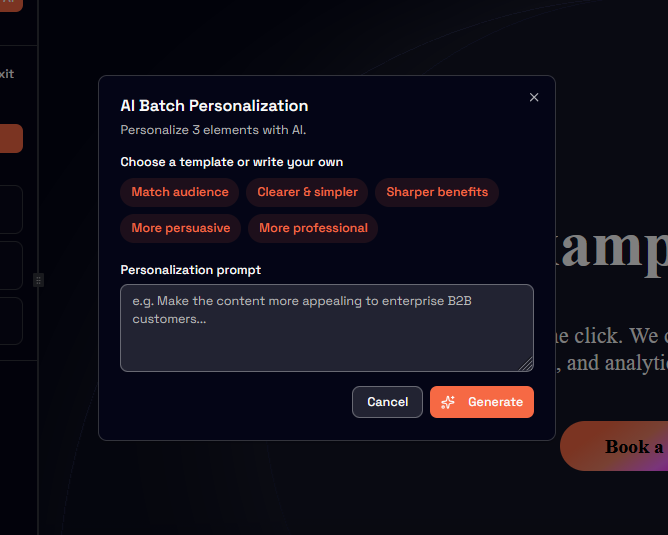
This opens the AI Batch Personalization screen in which you have two choices:
- You can use existing templates to regenerate the selected texts
- You can write your own prompts. More specific, the better!
After finalizing prompt selection you only need to press the Generate-button to see and confirm generated content!
Creating the variation
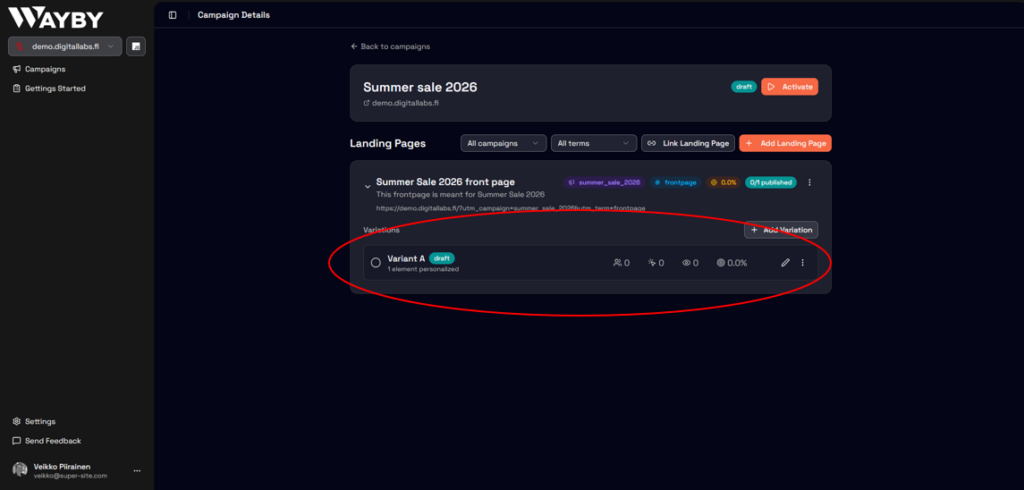
Once you’re happy with all your customizations, click Create Variation.
Your variation is now created and listed in the interface. At this point, Super-Site immediately begins tracking performance metrics for that variation, including:
- Visitors – Total unique visits
- Visits – Total amount of visits
- Views – Total amount of impressions
- Conversion rate – Conversion rate from visitors. If you have example set pressing certain button from the page, the formula would be (buttons pressed / visitors) x 100.
Managing conversion criteria
You can always update or adjust conversion criteria for a variation.
To do this:
- Click the three-dot menu on the variation
- Select Edit
- Find the conversion settings at the bottom of the editor
This allows you to fine-tune how conversions are calculated without recreating the variation.
Creating multiple variations for A/B testing
To run proper A/B tests, you can create duplicates of existing variations.
The process is simple:
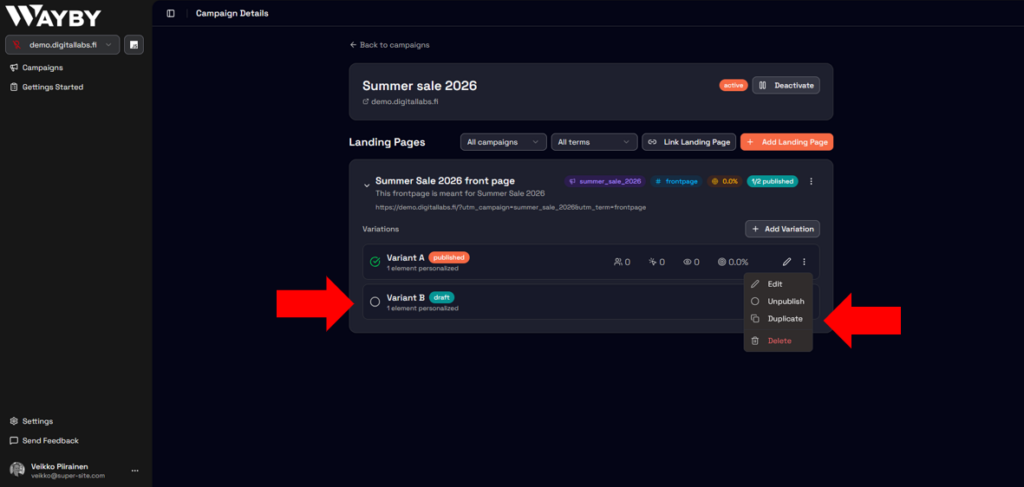
- Click three dots on an existing variation
- Select duplicate
- System prompt asks you to verify duplicating variation.
- Make the desired changes to differentiate it
- Save the updated version as a new variation
Each variation can have its own content and performance metrics, making it easy to compare results.